1. Log in TUMonline
Please log in to TUMonline and navigate to your business card by clicking on your name top right.
Click on "Personal Settings" to edit the account settings. 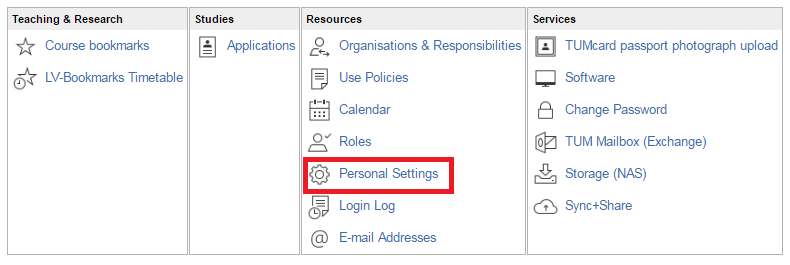
Screenshot: Applications menu - account settings
2. Personal Settings
The following window opens: 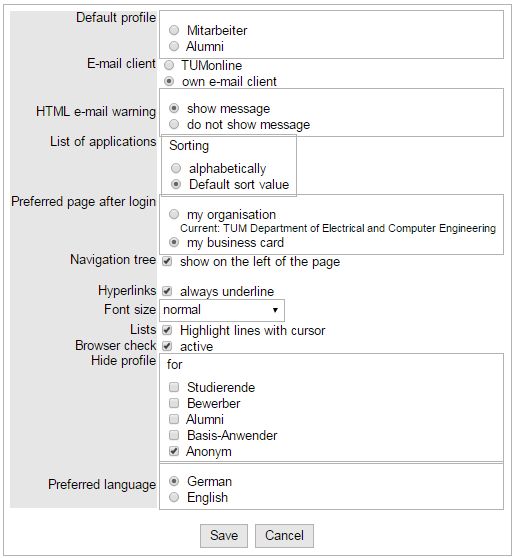
Screenshot: Edit account settings
Below we explain the different functions.
Default profile
You can be assigned to more than one profile, for example if you were student at TUM before and now you study again. In this case you have the profile "Alumni" and "Student".
Here you have the oportunity to set the default profile. After setting the default profile TUMonline always logs you in with this profile.
E-Mail Client
You can configure which mail program opens when you click on an e-mail address in TUMonline via “E-mail client”.
Mail-HTML-Warnung
Here you can configure, if a HTML-warning shuold be sent when sending e-mails.
List of applications
“List of applications - Sorting” allows you to sort the links in the applications menu alphabetically or by subject.
Preferred page after login
Via “Preferred page after login”, you can decide whether your personal business card or the business card of your preferred organization is to be displayed after log-in.
Navigation Tree
You can decide whether the TUMonline navigation tree is to appear on the left-hand side via “Navigation tree”.
Hyperlinks and font size
Choose the design.
Lists
Here youcan highlight lines in lists with a cursor.
Browser check
To use TUMonline with older browsers please deactivte this check mark. The browser check ist not active. Please note: errors in the display of TUMonline can occur afterwards.
Hide profile
You can determine which user groups (applicants, students, alumni, anonymous users) can view your profile via “Hide profile”. If you enter a tick, for example, in front of the “Studierende” group, students cannot find you in the people search and your contact details will not be displayed to them.
Please note: Your own contact details cannot be hidden from TU München employees who are logged in.
Language
You can configure whether your TUMonline is to be displayed in German or English via “Preferred Language”.