

Unterschiede zu Mailman 2
Unterschiede, die die meisten Kundinnen betreffen werden:
Alle bisherigen Passwörter von mailman2 (Administrator, Moderator und Mitglieder) sind obsolet! Für die Benutzung des neuen Webinterfaces von mailman3 muss zuerst einmalig ein neues Benutzerkonto angelegt werden über die "Benutzer registrieren"-Funktion des neuen Webinterfaces. (Die Benutzerverwaltung von mailman3 ist unabhängig von der zentralen Benutzerverwaltung des LRZ, da es auch viele Benutzer der Mailinglisten gibt, die gar keine Kennung am LRZ haben.)
NACH dem Anlegen eines Benutzerkontos wird anhand der Mailadresse(n), die mit dem Benutzerkonto verknüpft sind, festgelegt, welche Rollen ein Benutzer bezüglich der Mailinglisten hat. Die üblichen Rollen sind Mitglied, Moderator und Eigentümer. Aus den Rollen ergeben sich dann auch die Rechte, die ein Benutzer für eine Mailingliste hat.
Damit müssen nicht mehr die Admin- und Moderator-Passwörter einer Liste geteilt werden, wenn mehrere Personen Moderator oder Eigentümer sind. Jeder Benutzer hat sein persönliches Passwort.
Beispiel:
In der Mailingliste beispiel@lists.lrz.de war bei mailman2 folgender Eintrag:
Eigentümer: max.muster@lrz.de
Wenn sich nun Max Muster wie unten beschrieben ein Benutzerkonto anlegt, und dabei als E-Mail-Adresse max.muster@lrz.de verwendet, wird ihm automatisch für die Mailingliste beispiel@lists.lrz.de die Rolle Eigentümer zugewiesen und er kann nach erfolgreicher Anmeldung wieder wie gewohnt die Mailingliste beispiel@lists.lrz.de verwalten.
Nun hat Max Muster noch die Alias-Adresse muster@lrz.de, die er bei einer anderen Liste verwendet hat. Dann kann er in seinem Benutzerkonto diese Adresse als weitere Mailadresse hinzufügen und erhält dann ebenfalls die damit verknüpften Rollen und Rechte für sein Benutzerkonto.
Analog funktioniert das dann auch für die Moderatoren und Mitglieder der Mailinglisten.
Verwenden Sie NICHT die Mailadresse einer Mailingliste für die Registrierung eines Benutzerkontos!
Eine Mailingliste ist kein Benutzer.
- MM3 bringt eine echte Benutzerverwaltung mit:
- Für die meisten Tätigkeiten in Bezug auf eine Liste ist eine Registrierung am Listenserver nötig → s. auch unten
- Sie registrieren sich nach dem Tag der Migration mit Ihrer E-Mail Adresse https://lists.lrz.de/accounts/signup/
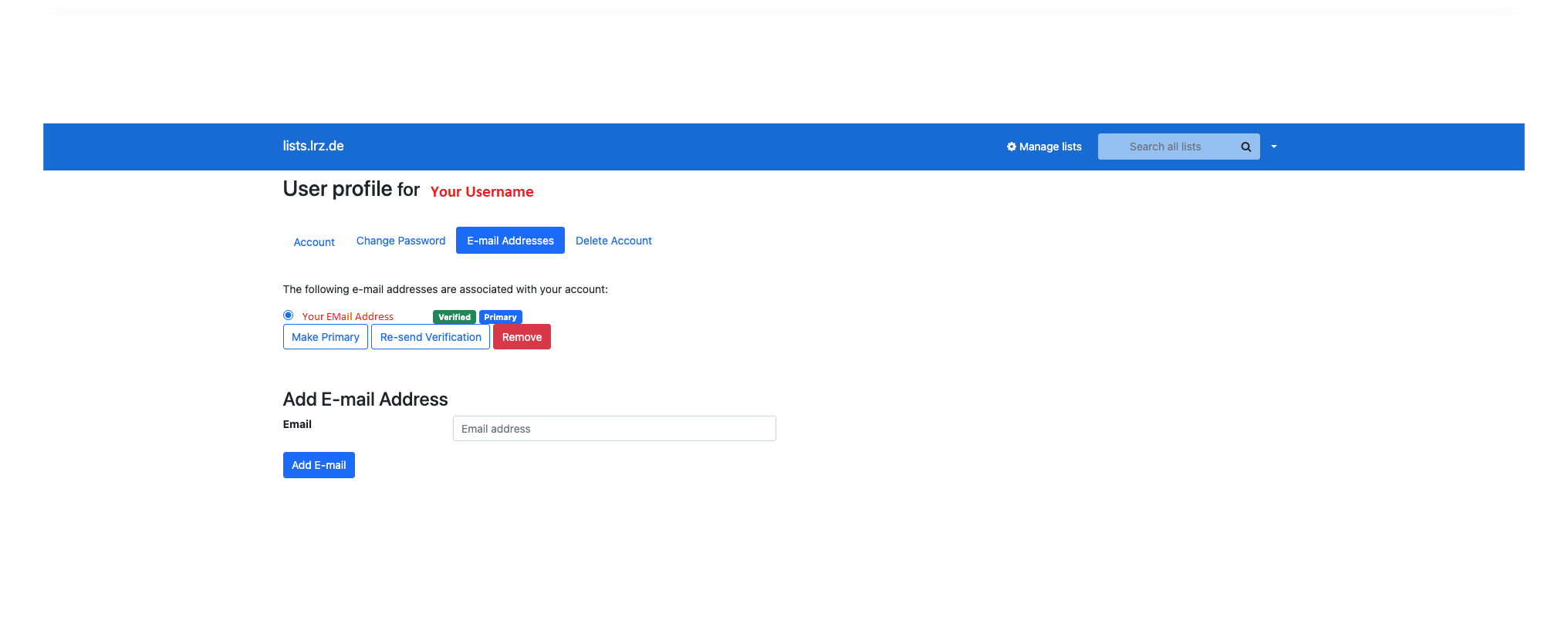
- Falls Sie mit weiteren E-Mail Adressen auf Listen abonniert sind, sollten Sie nach der Anmeldung in Ihrem Konto diese E-Mail Adressen hinterlegen - jede dieser weiteren E-Mail Adressen muss verifiziert werden
- Anschließend können Sie Ihre Listen verwalten, je nachdem welche Rolle (Besitzer, Moderator oder Mitglied) Sie für die entsprechende Liste inne haben, stehen Ihnen mehr oder weniger Funktionen zur Verfügung
- Im Gegensatz zu MM2 hat jede Benutzerin ihr eigenes, persönliches Passwort, d.h. Passwörter müssen z.b. nicht mehr zwischen Moderatoren geteilt werden
- Damit fallen auch die monatlichen Passwort Erinnerungsmails weg
- Für die meisten Tätigkeiten in Bezug auf eine Liste ist eine Registrierung am Listenserver nötig → s. auch unten
- Besitzerinnen einer Liste können diese löschen → Aktuell kann die Liste NICHT wiederhergestellt werden!
- Bei neu angelegten Listen wird das From: Feld standardmäßig durch die Listen-Adresse ersetzt um DMARC konform zu versenden
- Welche Anpassungen bei Texten und Vorlagen müssen im Zuge der Migration nachgezogen werden (Ausschnitt der Möglichkeiten)
- Texte die in MM2 innerhalb der Konfiguration angepasst wurden
- die Felder "description" und "info" in MM2 haben eine Entsprechung in MM3 → "kurze Beschreibung" und "lange Beschreibung"
- die Felder "msg_footer" und "digest_footer haben keine Entsprechung in MM3 → im Reiter "Vorlagen" können diese aber neu konfiguriert werden
- Texte die in MM2 unter "Texte und öffentliche HTML-Seiten anpassen" hinterlegt wurden
- sofern in MM3 vorgesehen, können die Texte im Reiter "Vorlagen" neu konfiguriert werden
- der Text zur Beschreibung der Seite der sich unter "Info" → Zusammenfassung findet, wird über das Feld "lange Beschreibung" konfiguriert
- Per Default fügt MM3 einen Footer zu den E-Mails hinzu. Möchte man diesen ausschalten muss er über "Vorlagen" mit leerem Inhalt aktiviert werden
- Texte die in MM2 innerhalb der Konfiguration angepasst wurden
Unterschiede, die nur wenige Kundinnen betreffen werden:
- Das Feature der "Umbrella Listen" wurde in MM3 nicht mehr implementiert:
- Eine einfache Form der Top-Down (Parent-Child) Verteilung von Mails kann auch in MM3 realisiert werden
- Bisherige Umbrella Listen müssen vor der Migration umkonfiguriert werden
- In der "Parent" Liste folgende Einstellungen vornehmen:
- from_is_list → Absender verschleiern
- accept_these_nonmembers → Absender hinterlegen und (falls nötig) aus den Mitgliedern der Liste entfernen
- Adresse der "Child" Liste in den Mitgliedern eintragen
- Adresse der "Child" Liste aus dem Feld regulär_include_lists entfernen
- In der "Child" Liste folgende Einstellungen vornehmen:
- require_explicit_destination → Nein ODER
- require_explicit_destination → Ja UND in acceptable_aliases die Adresse "Parent" Liste eintragen
- accept_these_nonmbers → die Adresse der "Parent" Liste eintragen
- Die Footer sollten für alle Ebenen angepasst bzw. ausgeschaltet werden, s. auch oben
Registrierung am Listenserver:
- Die Möglichkeit zur Registrierung wird ab dem 05.02.2026 freigeschaltet sein
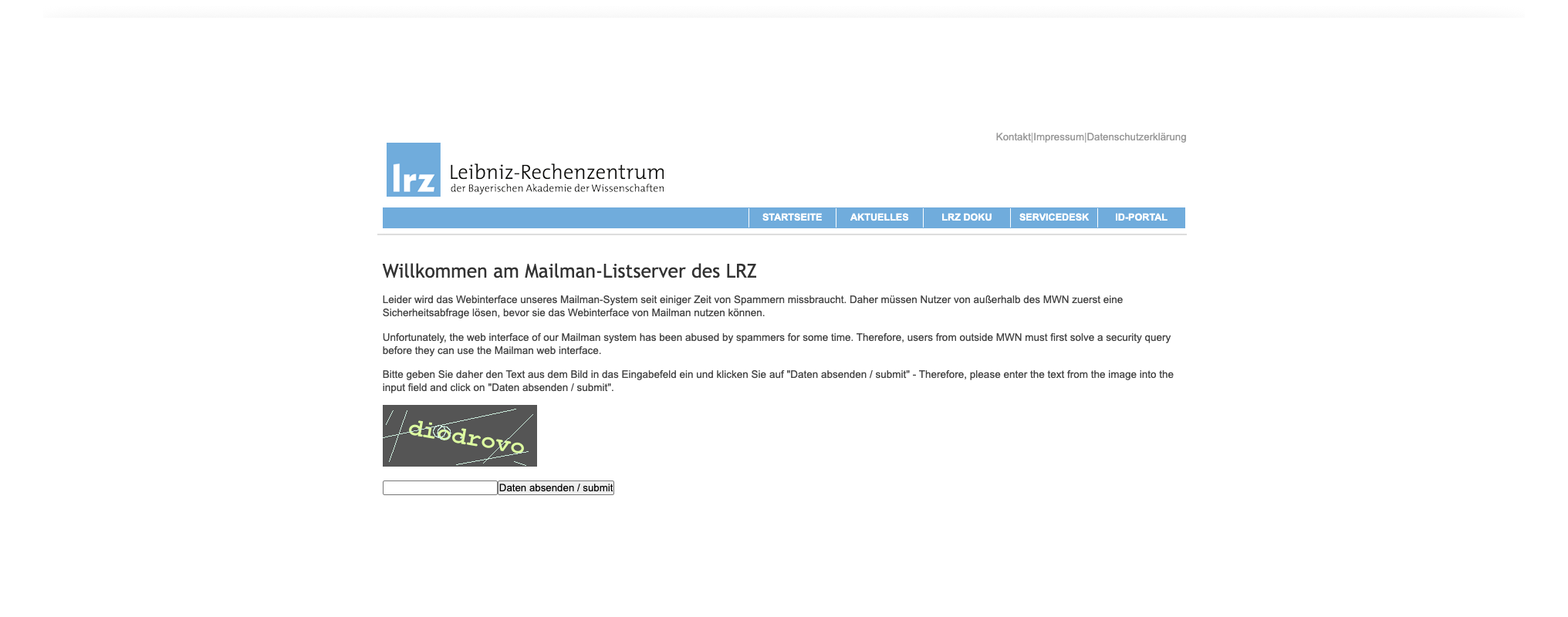
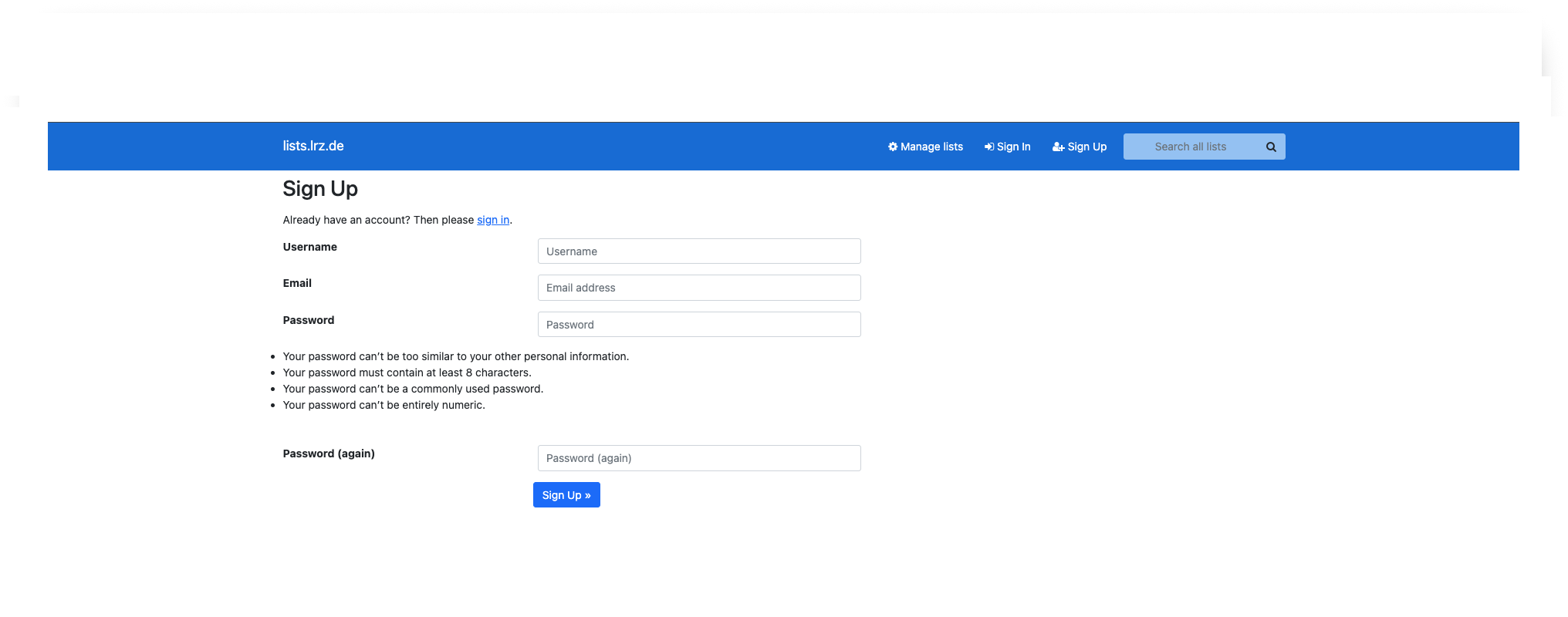
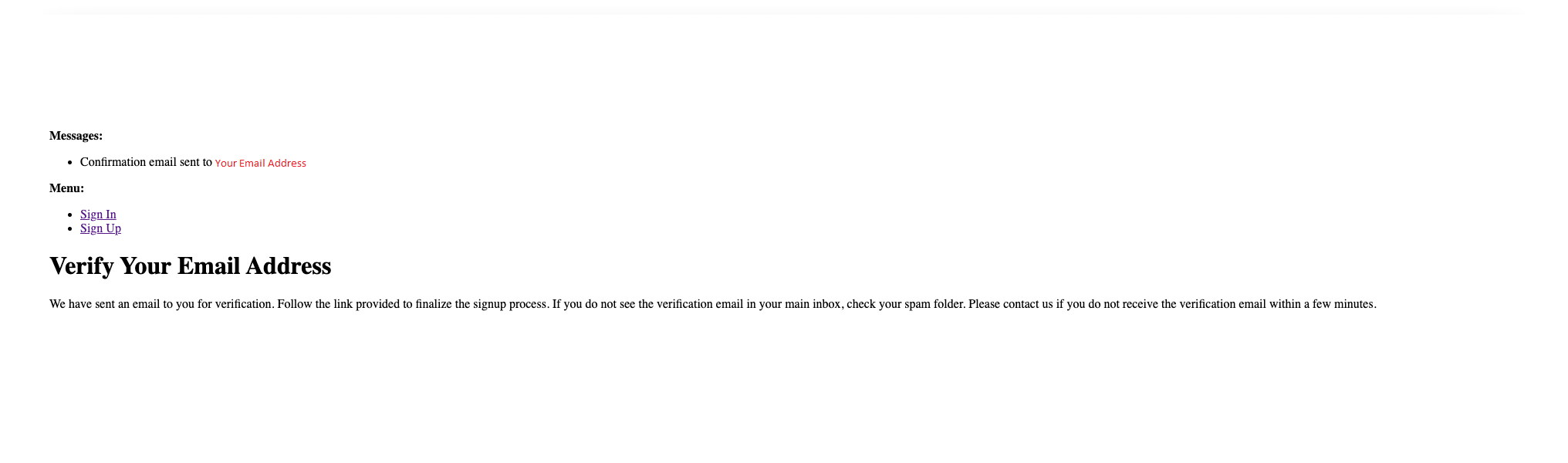
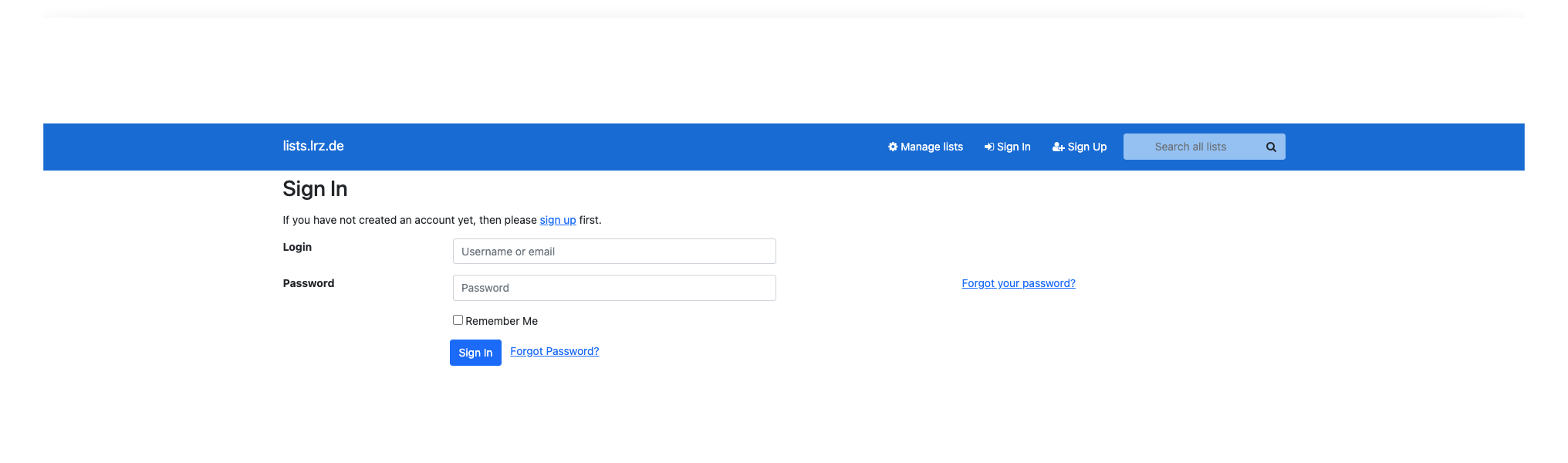
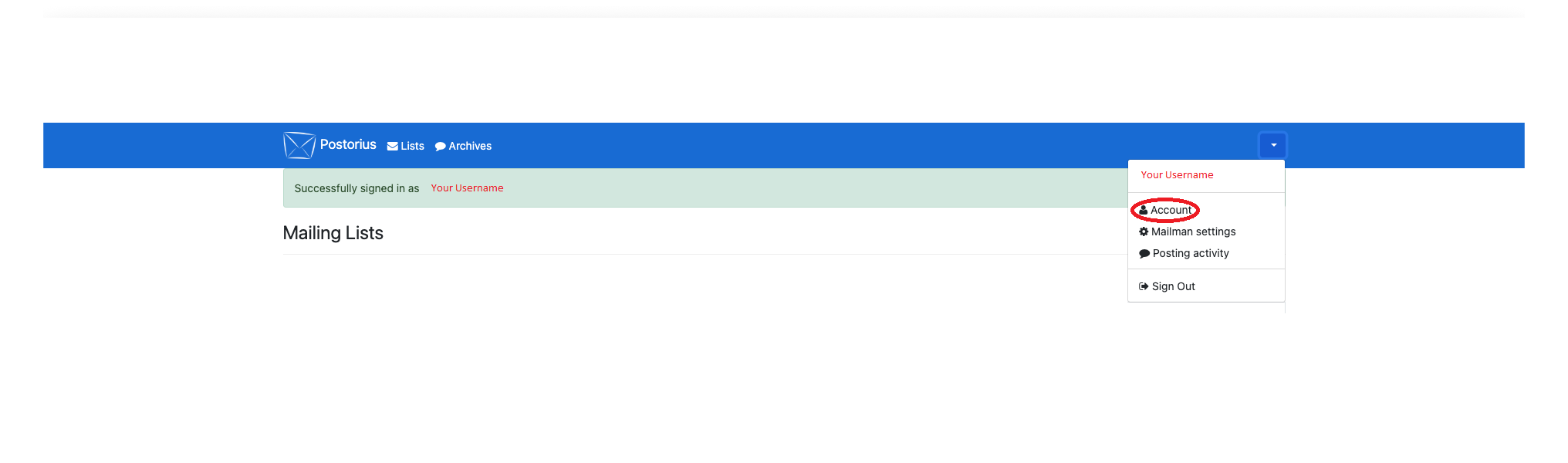
- Folgen Sie bitte den dokumentierten 8 Schritten
- Wählen Sie einen eindeutigen "Username" - wir empfehlen Ihre LRZ Kennung zu verwenden oder auch Ihre E-Mail Adresse
- Das Lösen des Captcha in Schritt 2 entfällt, wenn Sie die "Sign Up" Seite innerhalb des MWN aufrufen
- Schritt 7 und 8 sind nur notwendig, wenn Sie mit mehr als einer E-Mail Adresse auf verschiedenen Listen aboniert sind