The photo you upload to TUMonline will be used for your TUMCard/StudentCard.
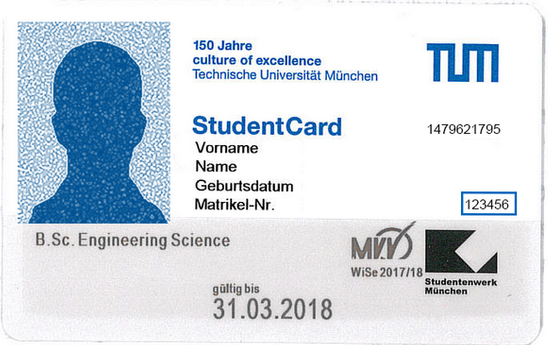
Screenshot: StudentCard
1. Log in TUMonline
Please log in to TUMonline.
Click on the application “TUMCard Passport Photograph Upload” to upload your photo:
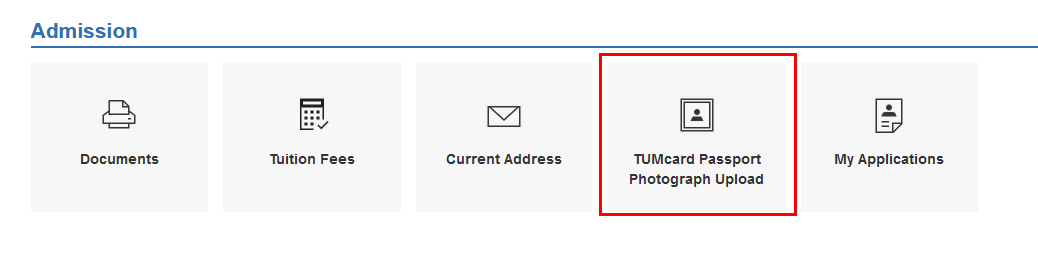
Screenshot: Application “TUMCard Passport Photograph Upload”
2. Choose your photo
Click on “Browse...” to upload a photo. A new window opens. Navigate to the folder where the photo is saved and select the photo. Please make sure the photo corresponds to the recommended image size as well as file format.
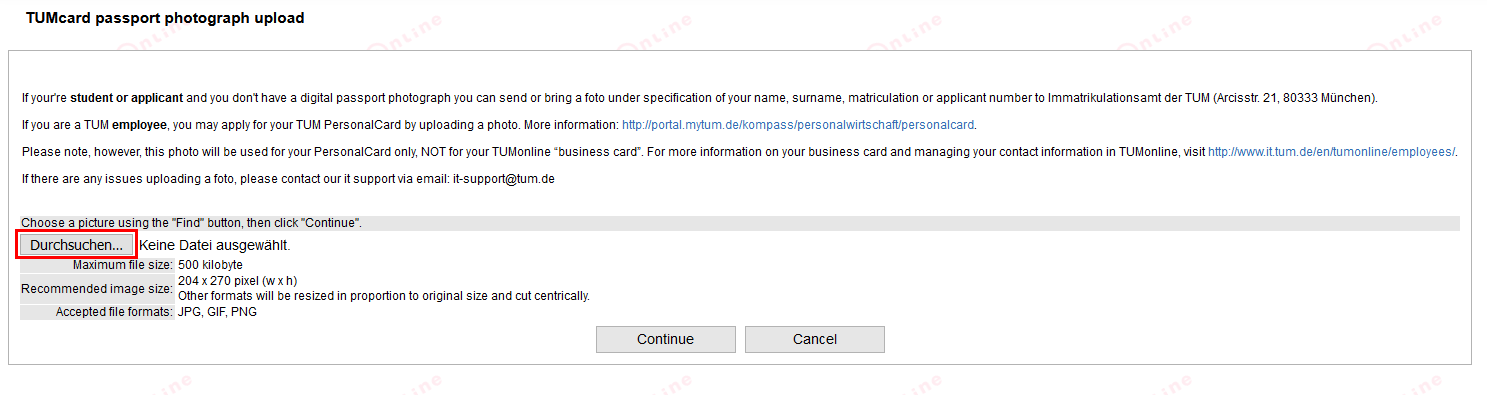
Screenshot: Upload passport photo for the TUMCard
After selecting a photo, click on “Continue”.
3. Check photo and upload
Check your selected photo. If you want to change the photo, click on “Back” and repeat step 2. If you want to save the photo without further changes, click on “Continue”.
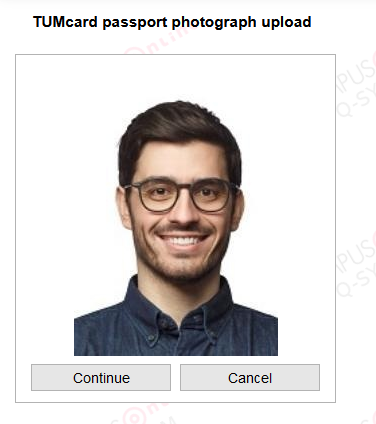
Screenshot: Photo
4. Receive StudentCard
After uploading your photo, please send an e-mail to studium@tum.de. You will then receive an e-mail with further information about collecting your card.
Further information about the StudentCard.