1. Connect to the Wi-Fi "lrz"
Click on the Wi-Fi icon top right.
Connect the open Wi-Fi "lrz" by clicking on it.

Screenshot: Wi-Fi icon
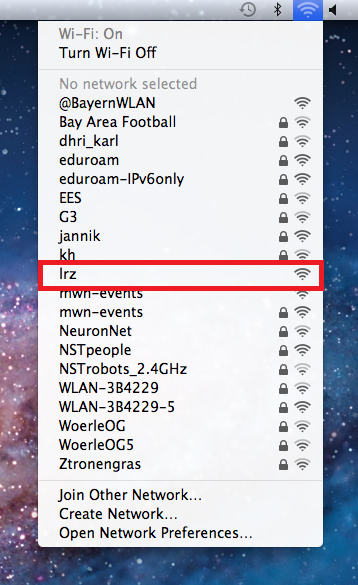
Screenshot: Choose Wi-Fi
2. Open LRZ website
Open the website https://www.lrz.de/services/netz/wlan/eduroam/ .
Click on "Mac OS X konfigurieren".
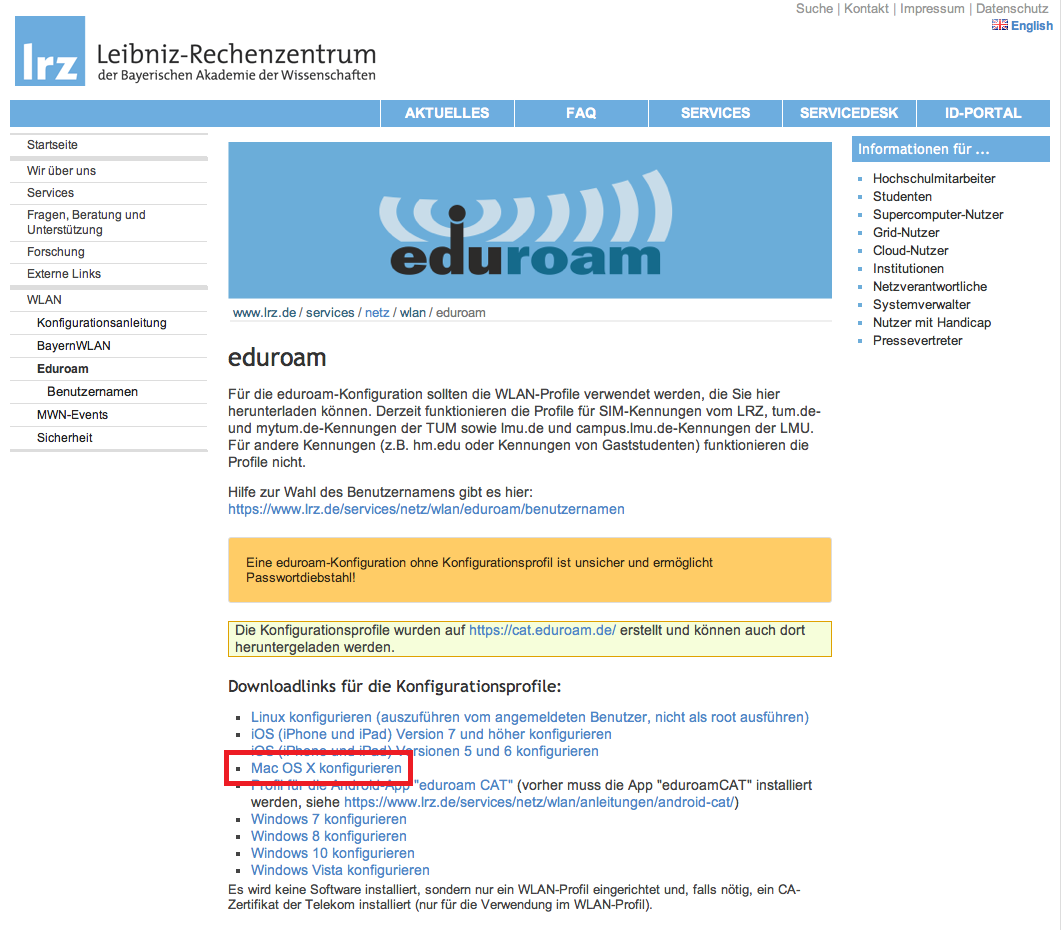
Screenshot: LRZ website
3. Download configuration profile
The configuration profile downloads and opens up automatically.
IF NOT, you can find the profile under "settings" / gear wheel icon.
Click on "Continue".
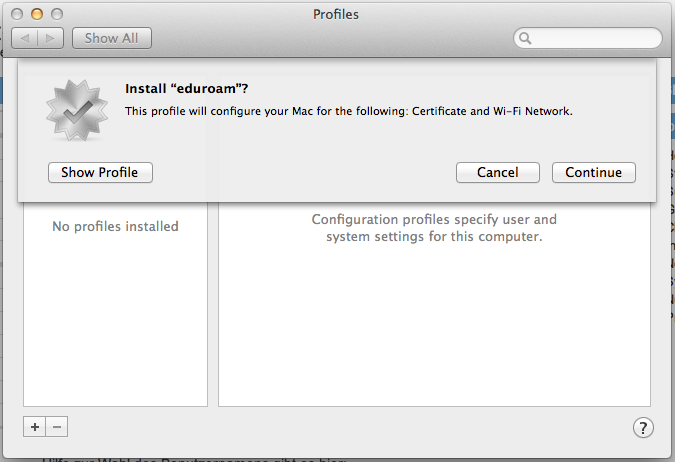
Screenshot: Install configuration profile
4. Enter user credentials
Enter your user credentials as shown: TUM-ID@eduroam.mwn.de, e.g. gu27cat@eduroam.mwn.de.
You find your TUM ID in TUMonline at "E-mail addresses".
Enter your personal password. Your personal password is your TUMonline password.
Tip user name
Enter your user name as shown and your device connects automatically, everywhere available, to "eduroam".
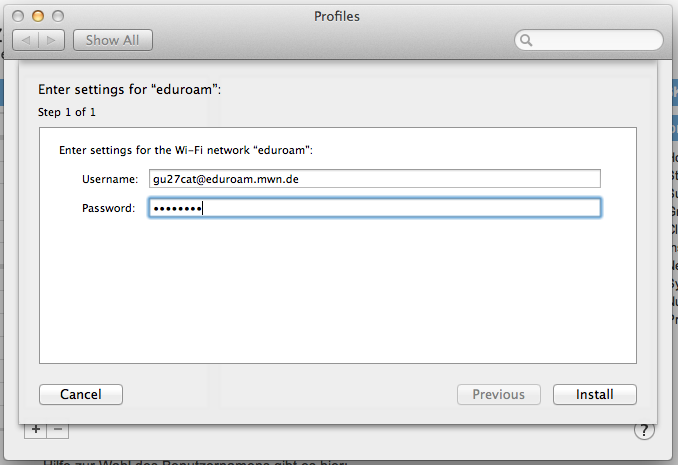
Screenshot: Enter user credentials
The profile is installed.
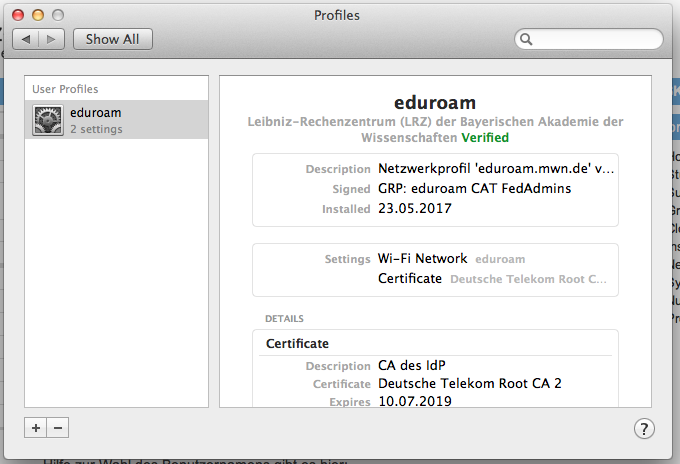
Screenshot: Installed profile
5. Connect the Wi-Fi
Your device connects automatically to the Wi-Fi eduroam.
IF NOT: Choose at the Wi-Fi symbol top right "eduroam", see step 1.