1. Open website
Open https://cat.eduroam.de/ to download the needed configuration profile.
Click on the blue button "download your eduroam installer".
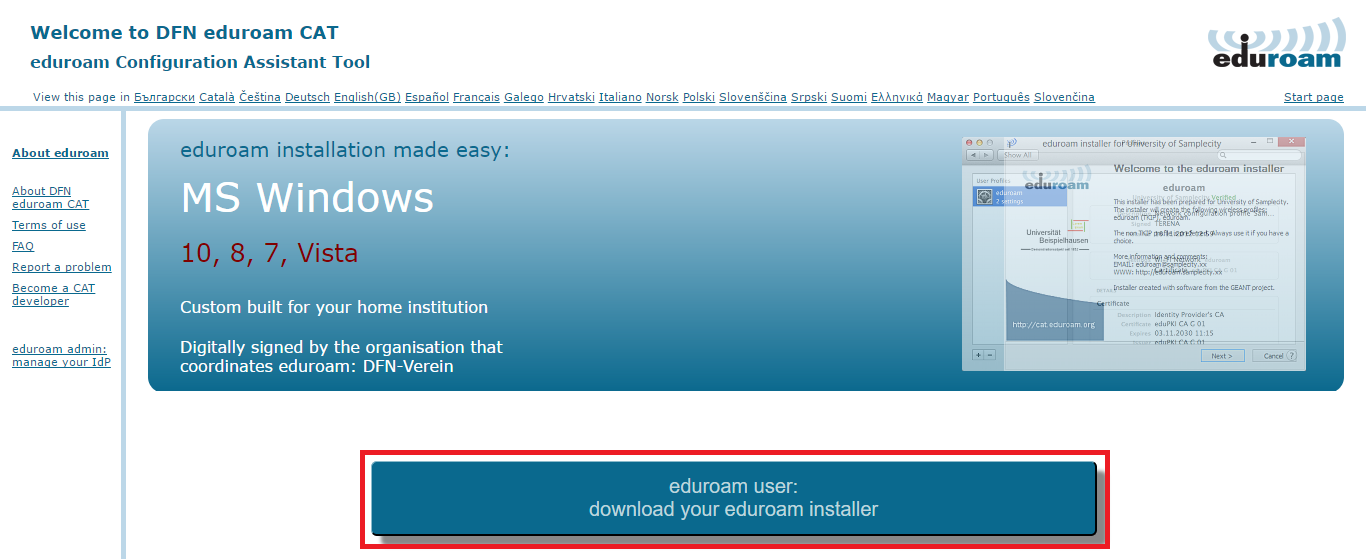
Screenshot: Download eduroam installer
2. Select home institution
In the next step select as home institution "Technical University of Munich (TUM)".
If TUM is not listed, use the search function and search for "TUM".
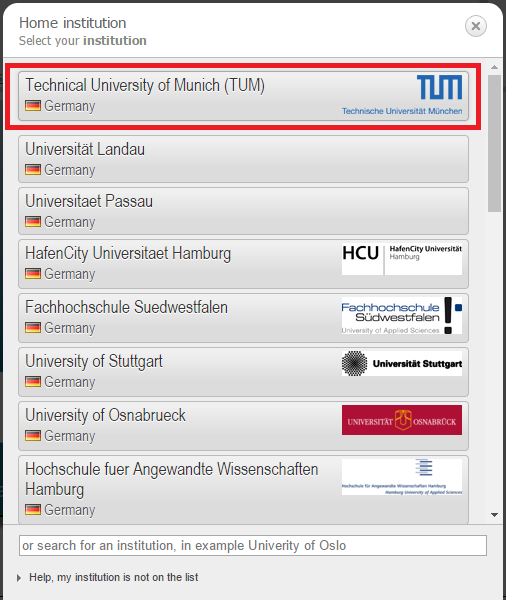
Screenshot: Home institution
3. Download configuration profile
Download the configuration profile by clicking on the blue button "Windows XX".
The software version gets recognized automatically.
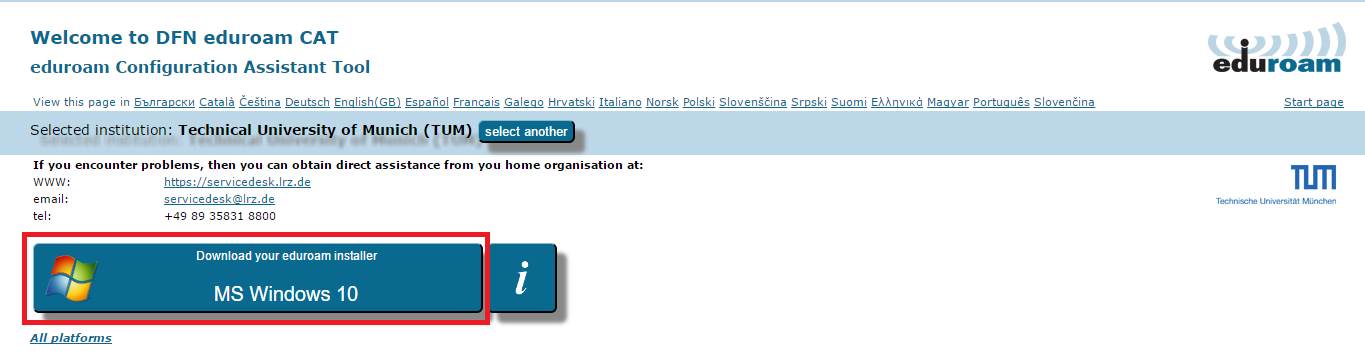
Screenshot: Download configuration profile
4. Install configuration profile
Open the software installer and confirm the next steps, to download the configuration profile.
Safety note
Your Windows might show you a safety note, that this programm/app hazards your device. Continue the installation process.
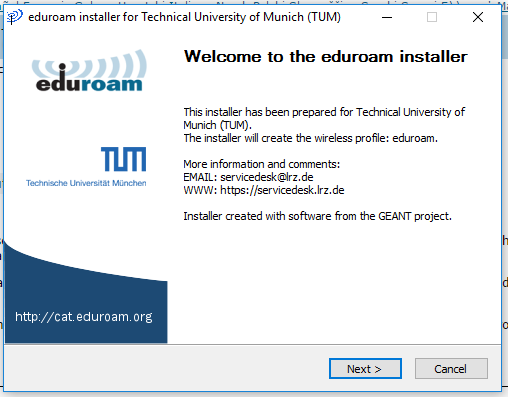
Screenshot: Start installation
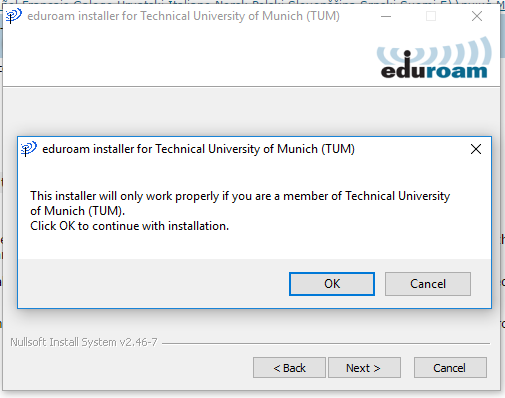
Screenshot: Step two
5. Enter user credentials
Enter your user credentials as shown: TUM-ID@eduroam.mwn.de, e.g. gu27cat@eduroam.mwn.de.
You find your TUM ID in TUMonline at "E-mail-adresses".
Enter your personal password.
Your personal password is your TUMonline password.
Tip user name
Enter your user name as shown and your device connects automatically, everywhere available, to "eduroam".
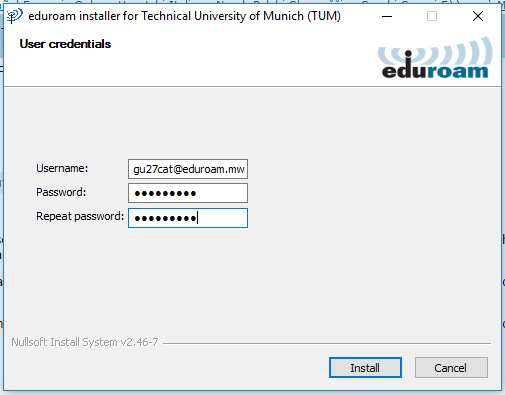
Screenshot: User credentials
6. Connect the Wi-Fi
The installation is complete.
Your device connects automatically to the Wi-Fi eduroam.
IF NOT: Select eduroam from the list of Wi-Fis and connect to it by double click on eduroam.
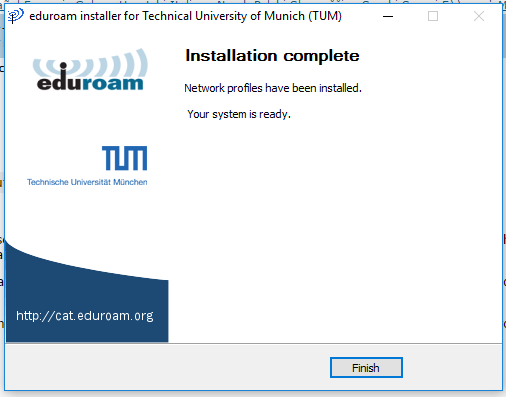
Screenshot: Installation complete
Kommentar
Leon Bein sagt:
15. April 2024Should be https://cat.eduroam.org/ instead of https://cat.eduroam.de in the English version.